How to get email alerts for new Google reviews
To get email alerts for new Google reviews, open your Google Business Profile, go to Settings, and select Notifications. Turn on review notifications for the profile you manage, then check your inbox and spam folder. Enabling notifications does not guarantee that every review email will arrive promptly.
That gap matters. Google review alerts can be delayed, grouped into one email, or fail to appear even when notifications are enabled, so email should not be your only way to keep up. A backup routine helps you spot new feedback and respond while it is still timely.
This guide explains where to find reviews in Google Business Profile, how to switch on notifications, and how to manage alerts in your inbox. You will also learn what to check when an alert is missing or late, plus a simple backup routine to help keep new reviews from going unnoticed.
Key Takeaways
- Find and review customer feedback directly in your Google Business Profile so you can act on it without relying on inbox alerts alone.
- Use inbox filters and forwarding to keep review notifications visible and route them to the email account you check regularly.
- Make a brief weekly review check part of your routine, giving you a backup when notifications arrive late or go missing.
- For a more organized response process, consider automated review invites and AI-generated review responses.
- Review requests can also be sent through WhatsApp, SMS, and email, helping businesses use the channels that fit their customer communication workflow.
Finding business reviews in Google Business Profile
The basic way to find reviews is the same across business types: open the correct Google Business Profile and select its reviews. Country and business category do not change that core step. If you manage several locations, first make sure you have selected the right profile.
- Sign in to the Google account that manages the profile. Open Google Business Profile and check which business or location is selected before reviewing feedback. For example, a restaurant with separate branches should open the branch named in the review. Otherwise, you could reply from the wrong location or miss feedback on another profile.
If several businesses appear in your account, use the business name and address to identify the right listing. For a multi-location clinic, distinguish each branch before opening its reviews. This check keeps customer comments, ratings, and follow-up actions tied to the correct location.
- Open the profile’s reviews area. Select the business profile, then choose the option for reading reviews. Google may show feedback alongside the business listing in Search or Maps, while the profile’s management view provides a direct route to review activity. Use the management view to monitor a business you are authorized to manage.
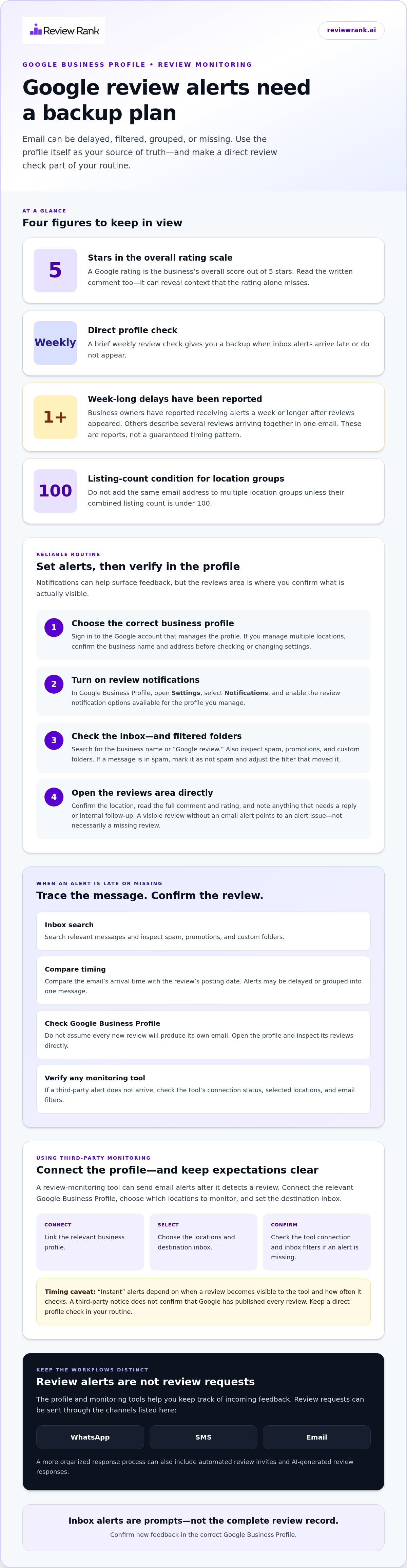
Read the review itself, not only the star rating. A Google rating is the business’s overall score out of 5 stars. The written comment adds context: a four-star review might praise a hotel’s staff while mentioning a check-in problem. That detail helps you decide whether a reply or an internal follow-up is useful.
- Review each new entry and note what needs action. Check the reviewer’s text, rating, and the location attached to the review. For example, a bakery owner might see praise for a custom cake but a complaint about pickup timing. Note the issue so staff have a clear point to investigate before replying.
Do not treat your inbox as the complete review record. Email notifications are prompts; the profile’s reviews view lets you inspect feedback directly. If an expected alert has not arrived, open the profile and look for the review there. A visible review without an email alert points to a notification issue, not necessarily a missing review.
Use this review check before responding to or escalating feedback. Confirm the location, then read the full comment and rating. This helps a single-location business stay organized and gives teams managing multiple profiles a consistent way to find customer feedback.
Email alert delays and filtering
A notification can arrive late, land in a filtered folder, or never appear. Treat email as one signal, then compare it with the review shown on your Google Business Profile.
Review Alert Timing and Filtering
- Check the message path before changing notification settings. Search your inbox for Google review emails, then inspect spam, promotions, and custom folders. In Gmail, search for the business name or “Google review” to find messages that filters may have moved. If a message is in spam, mark it as not spam and adjust the filter that sent it there.
Next, compare the email’s arrival time with the review’s posting date. Business owners have reported receiving alerts a week or longer after reviews appeared. Others describe several reviews arriving together in one email. This may indicate a delayed or batched alert, rather than a problem with the profile itself.
Don’t assume every new review will produce its own message. On September 1, 2025, a user reported that Google Support described an automated threshold after which further review notification emails would not be sent. This was a user report, not a published setting to change. Check the profile directly when alerts stop or arrive in a batch.
Set Up Instant Alerts with Third-Party Tools
- Choose a review-monitoring tool that sends email alerts, then connect the relevant Google Business Profile. Set the destination inbox and select the locations to monitor. Third-party tools can email you after detecting a review, but “instant” alerts depend on when the review becomes visible to the tool and how often it checks. A third-party alert does not prove that Google has published every review.
Test the setup with a newly visible review, if available, and confirm the notice reaches the correct inbox for the correct location. If it does not arrive, check the tool’s connection status and your email filters. Use the Google Business Profile review page to confirm whether feedback is visible.
Set separate alert rules when a team needs different inboxes for different locations. For example, a hotel group can route each property’s review notices to its local manager. Clear ownership helps prevent missed follow-up when several teams share review duties.
For a joined-up review workflow, explore review management tools alongside your alert process. Keep a direct profile check in your routine, because neither an email filter nor a third-party notice replaces reviewing the listing itself.
Managing Google reviews
Yes, one account can manage reviews for multiple Google Business Profiles, but keep each location easy to identify. For location groups, don’t add the same email address to multiple groups unless their combined listing count is under 100.
- Set review notifications for the profile you manage. Open Google Business Profile, select Settings, then Notifications. Choose the review notification options available for that profile, and verify that you are signed into the right Google account. If the business has several locations, check the selected profile before changing settings so alerts are linked to the right listing.
Notifications can bring new feedback to your attention, but they do not replace a direct review check. Add a recurring profile review to your team’s normal workflow. For example, a clinic with multiple branches can assign each branch manager to check its reviews and route operational issues to the right team.
- Organize access for multiple locations. Give everyone responsible for responses a clear process for identifying each business profile. Keep location names consistent in your internal tracking, and label follow-ups with the matching branch. A restaurant group, for example, can record whether a comment refers to its downtown or airport location.
Pay attention to how location groups are set up. The same email address should not be added to multiple Google location groups unless their combined listing count is under 100. This matters for multi-location businesses because group structure and account access affect how teams organize profiles and notifications.
- Respond with the review’s details in view. Read the full comment before drafting a reply. A hotel review that praises the staff but mentions a delayed room may need a more specific response than a general thank-you. Address the customer’s actual experience, and avoid sharing private information in a public response.
Response timing shapes customer expectations. In BrightLocal’s 2026 Local Consumer Review Survey, 19% of consumers expected a same-day response, 32% expected one by the following day, and 81% expected a reply within a week. Use those expectations to set a practical review-response routine for your team.
- Build a weekly review check as a backup. Set aside a 10-minute weekly review to scan Google feedback and confirm that assigned replies are complete. Include every location in the check, rather than relying only on email notifications. A short checklist can track the location, review status, response owner, and any service issue that needs internal follow-up.
Consistency matters because silence can affect customer decisions. In BrightLocal’s 2026 Local Consumer Review Survey, 42% of consumers said they were unlikely to use a business that never replies to reviews. Use the weekly check to catch unanswered comments and close the loop with customers.
Review alert troubleshooting
If you can’t get email alerts for new Google reviews, separate the review itself from the email problem. Follow these steps to identify what went wrong and keep new feedback visible.
- Check whether the review is publicly visible. Open the correct Google Business Profile and compare its newest reviews with your inbox. A Google Business Profile user reported on August 31, 2025, that a review was public but hadn’t triggered an email alert. If you see the review online, focus troubleshooting on notifications and email delivery rather than assuming the review is missing.
Note the review date, location, and whether other alerts arrived around the same time. On August 26, 2025, another user reported that alerts had stopped despite notifications being enabled. That example shows why an enabled setting alone doesn’t confirm that messages are reaching your inbox.
- Confirm the notification setting and account. In Google Business Profile, open Settings and select Notifications. Make sure you are signed into the Google account that manages the profile you checked. If the business has branches, verify the selected location before adjusting its settings. Then review your inbox, spam folder, and email filters for messages that may have been sorted elsewhere.
Check whether alerts stopped across channels or only in email. One user reported that review notifications disappeared from both phone pop-ups and email. If both are missing, inspect the profile and notification settings first. If only email is affected, focus on inbox rules, spam handling, and the address receiving messages.
- Look for a pattern across profiles. Compare affected listings with profiles managed by the same account. A forum participant managing around 75 Google Business Profiles reported that alerts stopped for that account, while another account managing 5 profiles continued receiving them. This is an individual report, not proof that profile volume causes notification failures.
Another forum participant believed alerts might stop for accounts managing 100 or more profiles. Treat that as a reported suspicion, not a confirmed Google limit. Record which accounts and locations receive alerts, then compare them with profiles where notifications are absent. This helps narrow the issue without assuming a cause.
- Use a direct review check while alerts are unreliable. If you want to get email alerts for new Google reviews, check the profile manually each day until notifications resume. A user in a discussion recommended daily checks while alerts were missing. Also note sudden clusters: one participant reported receiving a flood of review alerts during a seven-hour period. A simple log of review dates and email arrival times can reveal delays, grouped messages, or a complete interruption.
Can I choose which email address receives new Google review alerts?
You can manage where you read alerts by forwarding them from a dedicated Gmail inbox. This gives your team another destination without requiring everyone to monitor the same inbox.
- Choose the inbox that will receive review notifications. Use an address managed by the person or team responsible for reading reviews. For example, a clinic could use a shared operations inbox instead of an employee’s personal account. A dedicated Gmail address can receive review notifications and forward them to another inbox.
Make sure the receiving inbox is accessible to the people who need to act. If one manager handles replies, forwarding alerts to a large group may create confusion about ownership. Decide who reviews incoming feedback and who follows up before routing messages.
- Set up forwarding in Gmail. Open Gmail settings for the dedicated inbox and find the forwarding option. Add the destination email address, then complete Gmail’s verification step. Afterward, check that the intended address is selected in the forwarding settings.
For example, a hotel manager could forward alerts from a property’s dedicated inbox to their work email. Keep the original inbox available as a record. The team can refer to it if forwarding rules change or a staff member’s responsibilities shift.
- Test the route before relying on it. Send a test message to the dedicated Gmail address, then confirm it arrives in the destination inbox. Check that the forwarded message is still identifiable as a Google review notification. If the destination sorts it into an unexpected folder, adjust its mail rules.
Test again after changing the destination or forwarding settings. A restaurant group, for instance, can verify that each location’s notifications reach the intended manager. This checks email delivery, but does not confirm that Google will send an alert for every review.
- Review access when roles change. If a staff member leaves or a location changes hands, update access to the dedicated inbox and destination account. Remove outdated forwarding addresses and test the new route. This keeps review messages from going to someone who no longer handles customer feedback.
For teams managing several profiles, label messages by location in the receiving inbox. A property manager can then distinguish a review for one guest house from feedback about another. Clear routing makes messages easier to assign and helps keep follow-up accountable.
For a broader approach to organizing review activity, explore a review management workflow alongside email forwarding.
Review Rank Ai: Automated Review Invites
Review Rank Ai offers Automated Review Invites through WhatsApp, SMS, and email. Its integrations connect review workflows with other tools businesses use to manage customer information. For example, CRM sync and customer import can bring customer details into the review process, while the available business tool integrations help connect that workflow to existing systems.
Once feedback arrives, AI-Generated Review Responses can support response management. The Google Local 3-Pack Leaderboard helps businesses monitor local search rankings. If you want to explore how these tools could fit your workflow, visit Review Rank Ai.
Make review monitoring part of your next workflow
Make review monitoring a clear team responsibility, not another task left to someone’s memory. Decide who checks new feedback, who owns each response, and how service issues reach the people who can address them. A simple handoff can turn customer comments into practical improvements, such as clearer appointment instructions or a better store pickup process.
If your goal is to get email alerts for new Google reviews, treat each alert as a prompt to act, not the whole process. Give feedback an owner and a next step. That way, your team can respond thoughtfully and use recurring themes to improve customer experiences.
Ready to make review management more structured? Contact Review Rank Ai about review support and take the next step toward a consistent workflow.
Frequently Asked Questions
How do I turn on Google review notifications?
Open the Google Business Profile associated with your business, then select Settings and Notifications. Choose the review notifications you want enabled and confirm you are signed into the account that manages the profile. If the business has several locations, select each relevant profile and check its notification settings. Then review your inbox rules so Google messages are not redirected away from your main inbox.
Can Google Business Profile send email alerts for new reviews?
Yes, Google Business Profile can send email notifications about new reviews. These alerts are useful prompts, but delivery and timing can vary: messages may be delayed, grouped, or missing. If a customer says they posted feedback but you have not received an email, look for the review on the business profile itself. This helps distinguish a notification issue from a review visibility issue.
How do I turn on review notifications in Google Business Profile?
Sign in to the Google account that manages the business, open Google Business Profile, then go to Settings and select Notifications. Review the available options and enable those related to reviews. If you manage several locations, repeat the check for the profiles your team needs to monitor. Keep a record of which account manages each listing so staff know where to look when an alert is expected.
How do I set up email notifications for Google reviews on desktop?
On a desktop, open Google Business Profile in a browser while signed in to the account managing the listing. Select the relevant business profile, open Settings, and choose Notifications. Enable review alerts, then check that you are signed into the intended email account. To route messages to a shared team inbox, set up email forwarding separately and send a test message to confirm it works.
How do I get Google review alerts on the Google Maps mobile app?
Use Google Maps to find your business listing and read reviews, but manage notification preferences through Google Business Profile. Open the profile settings, select Notifications, and enable review alerts for the account managing the listing. If you expect a phone notification, check your device’s notification permissions for Google apps. Email delivery and phone pop-ups are separate, so one can work while the other is muted.
Why am I not receiving Google review notification emails?
Common causes include using the wrong Google account, disabled profile notifications, spam filtering, inbox rules, or delays in Google’s alert delivery. Search your mailbox for Google review messages and inspect spam and filtered folders. Then open the profile directly to see whether the review is visible. If it is, the review exists even without an email. Keep checking manually until alerts resume.